Why Is Your Acer Laptop Display Not Working?
When a laptop display not working Acer problem starts, do not order a new screen first. The quickest way to avoid the wrong repair is to check whether the laptop can show an image anywhere: on the built-in panel, in BIOS, or on an external monitor. If you can separate a screen fault from a startup fault, the next step becomes much safer and usually cheaper.
How to Tell Whether the Screen or Laptop Is Failing
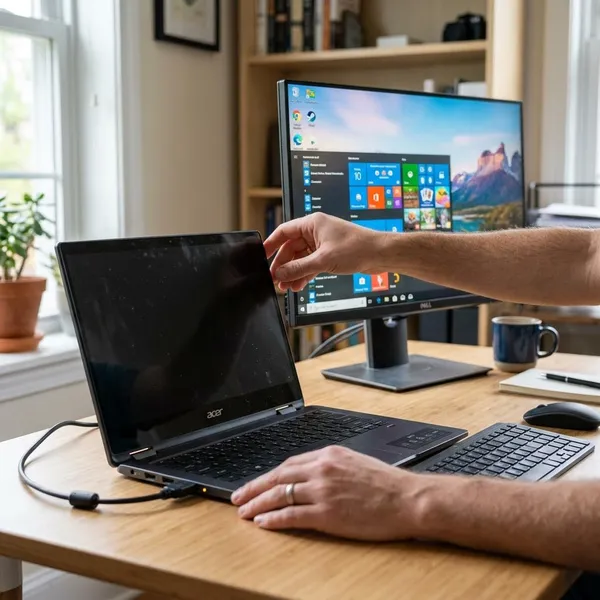
Start with the test that gives the clearest answer: connect the Acer laptop to an external monitor or TV. A working external image usually means the laptop is booting, while no image anywhere points more toward startup, memory, graphics, or motherboard trouble.
A working external monitor points to the screen, cable, or backlight
If an HDMI or USB-C monitor shows the Acer desktop normally, the laptop is probably running and sending video correctly. That makes the internal display path the main suspect: the panel, the display cable near the hinge, or the backlight circuit.
For a temporary setup, using an external monitor can be fine if you only need to finish work or copy files. For daily use, especially if you carry the laptop around, a black internal screen is not something to ignore because a loose cable or damaged panel can get worse.
No image on either display points to a boot, RAM, GPU, or motherboard issue
A blank built-in screen and a blank external monitor usually means the problem is not just the screen. The laptop may be powering on without completing POST, especially if the fan spins but the Acer logo never appears.
Watch for clues such as repeated restarts, no keyboard response, beeps, or power lights with no real startup activity. If the RAM is accessible on your model, reseating it is a reasonable early check; if nothing changes, motherboard or graphics hardware diagnosis may be needed.
A visible BIOS screen points to a Windows or driver problem
Seeing the Acer logo or BIOS menu is good news because the screen can still display basic output. On many Acer laptops, tapping F2 during startup opens BIOS; if that appears but Windows goes black, do not treat the panel as dead yet.
This pattern often follows a Windows update, graphics driver change, or bad display setting. Safe Mode, Startup Repair, uninstalling a recent update, or rolling back the display driver should come before screen replacement.
A faint image under a flashlight points to backlight failure
Shine a flashlight across the screen at an angle while the laptop is on. If you can barely see the login screen, cursor, or desktop, the panel is receiving an image but is not lighting it properly.
Check brightness first, but a flashlight-only image usually points to hardware rather than a simple setting. Depending on the model, the fix may involve the panel assembly, backlight power, or display cable connection.
An image that changes with the lid angle points to the display cable
Flickering, color shifts, blackouts, or lines that change when you move the lid are classic cable symptoms. Software problems do not normally react to hinge movement.
How to Fix a Black Acer Laptop Screen
Work from the safest fixes to the more invasive ones. A black screen can come from a stuck power state, the wrong display output, Windows failing to load, bad RAM, or a real display hardware failure.
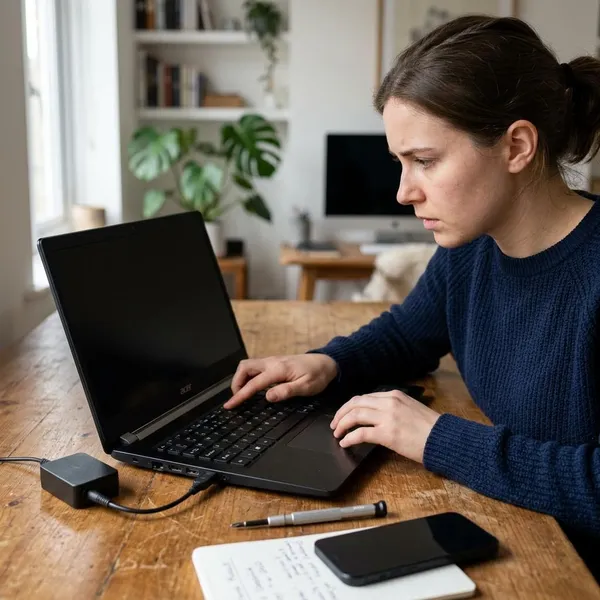
Perform a hard reset
Turn the laptop off, unplug the charger, and remove the battery if your model has a removable one. Hold the power button for about 15 to 20 seconds, reconnect only the charger, and try starting it again.
This does not erase files. It simply clears a stuck electrical or controller state, which can help after sleep, shutdown, or a failed update.
Switch between internal and external display output
The laptop may be sending the image to a monitor, projector, or dock that is no longer connected. Use the Fn key with the Acer display-switch key, usually marked with a screen icon, and wait a few seconds after each press.
This is a quick check if the problem started after using a TV or second monitor. It is also worth trying with an external display connected, because the laptop may need a moment to detect the output mode.
Open BIOS or Windows Recovery
Tap F2 during startup to try BIOS. If Windows begins loading and then fails, interrupting startup several times may trigger Windows Recovery on many systems.
If either menu appears, the display hardware is at least partly working. From there, try Startup Repair, uninstall a recent update, or use System Restore before considering hardware replacement.
Start Windows in Safe Mode
Safe Mode is useful when the Acer logo appears but the screen turns black during normal Windows startup. It loads basic drivers, so a working screen in Safe Mode points toward a driver, update, or startup app issue.
Update, reinstall, or roll back the graphics driver
Open Device Manager in Windows or Safe Mode and check the display adapter. If the issue began after an update, roll back the driver; if the driver looks corrupted, uninstall it and restart so Windows can load a basic version.
- After a Windows update: rollback is often the fastest test.
- After a clean install: use the Acer support driver for the exact model when possible.
- Random flicker or blackouts: reinstalling the driver can rule out corruption.
Reseat the RAM if the laptop does not complete startup
If no display works and the laptop never reaches the Acer logo, RAM is worth checking on models where the memory is accessible. Shut the laptop down, unplug it, remove and reinstall the RAM firmly, then test again.
With two memory sticks, test one stick at a time. If the laptop starts with one module but not the other, you have a useful clue; if nothing changes, deeper board-level diagnosis is more likely.
How to Fix a Dim, Flickering, or Distorted Screen
A dim, flickering, lined, or distorted Acer screen needs a different approach from a totally black screen. First decide whether the image problem follows Windows settings, lid movement, or physical damage that appears everywhere.
Raise the brightness and disable automatic dimming
Use the keyboard brightness keys, plug in the charger, and turn off battery saver or adaptive brightness if your model offers it. A screen that looks dim only on battery power may simply be following a power-saving rule.
If maximum brightness changes nothing and a flashlight reveals a faint image, move the backlight higher on your suspect list. That is different from ordinary low brightness.
Restore the recommended resolution and refresh rate
Open Windows display settings and choose the recommended resolution for the built-in screen. Then check Advanced display settings and return the refresh rate to a supported option.
This matters after gaming, driver updates, or using an external monitor. A wrong setting can make the panel look stretched, blurry, unstable, or briefly blank even when the hardware is fine.
Update or roll back the display driver
Driver changes can cause flicker, short blackouts, brightness bugs, or odd colors. If the problem began right after an update, rolling back is usually smarter than installing more random driver versions.
If there is no clear trigger, reinstall the graphics driver or use the driver listed for your exact Acer model. Avoid downloading display drivers from unknown driver sites; a bad package can make troubleshooting harder.
Reset Windows and monitor color settings
Washed-out colors, a strong tint, strange contrast, or an overly dark image can come from color profiles or graphics control panel settings. Remove unusual custom profiles and reset gamma, contrast, night light, and color enhancement settings to normal.
If colors look normal in BIOS but wrong inside Windows, this check is more useful than replacing parts. If the same tint appears before Windows loads, the issue is more likely hardware-related.
Repair the display cable if lid movement affects the image
When the image changes as you open or close the lid, focus on the cable and connectors around the hinge. You may see flicker, colored lines, partial blackouts, or a picture that returns only at one lid angle.
Reseating or replacing the cable requires opening the laptop and working close to the panel. If you have not handled laptop screens before, this is a sensible repair-shop job because rough hinge or bezel work can crack the display.
Replace the panel if cracks or fixed lines remain
Cracks, ink-like blotches, pressure marks, and fixed vertical or horizontal lines that appear in BIOS usually mean the panel itself is damaged. Software fixes will not repair physical screen damage.
Screen replacement normally does not erase your files because data is stored on the SSD or hard drive, not in the display. The practical decision is whether the correct panel and labor cost make sense for the laptop's age, condition, and value.
Conclusion
The best first move is not the most dramatic repair; it is the test that separates a screen problem from a laptop problem. If an external monitor works, look at the panel, cable, or backlight. If nothing appears anywhere, treat startup hardware as the bigger concern, and if the laptop becomes usable even briefly, back up your files before continuing.
FAQS
Can a factory reset fix an Acer laptop black screen?
Yes, but only when Windows or a driver is causing the black screen. If BIOS and Recovery are also invisible, a factory reset is unlikely to help.
Can you use an Acer laptop with a broken screen?
Yes, you can often use it with an external monitor if the laptop still boots normally. That is fine as a temporary workaround, but it is awkward for travel and daily laptop use.
Does replacing an Acer laptop screen erase your files?
No, a screen replacement normally does not erase files. Still, back up important data first if you can access the laptop through an external display.