How Can You Customize Your iPhone Display Settings?
If your screen feels too bright, cramped, or hard to read, start with the iPhone display settings that affect comfort first: brightness, text size, Bold Text, Dark Mode, True Tone, and Display Zoom. Change one setting at a time, then test it in the apps you actually use, because the best setup for reading messages at night is not always the best setup for outdoor visibility.
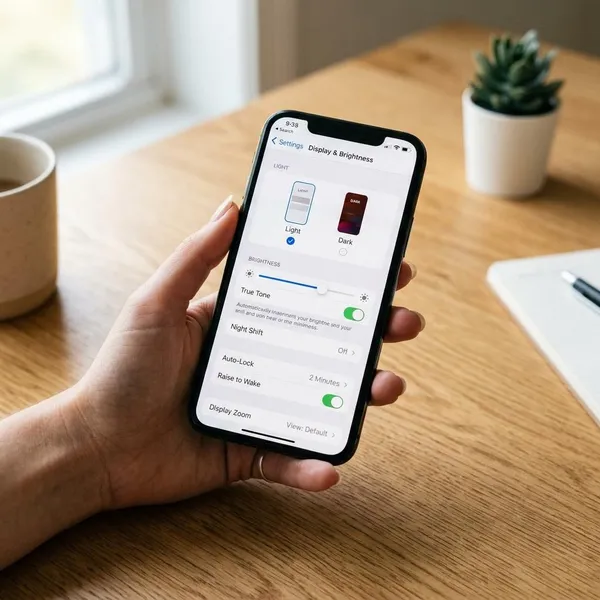
Main iPhone display settings
The main display controls are mostly in Settings > Display & Brightness. If the screen feels uncomfortable, check brightness first, then appearance, and then the settings that change text or interface size.
A practical order usually works better than changing everything at once:
- Too bright or too dim: adjust brightness before changing anything else.
- Too harsh at night: try Dark Mode or a lower brightness level.
- Words are hard to read: increase Text Size or turn on Bold Text.
- The whole screen feels too small: use Display Zoom instead of only enlarging text.
- Colors feel cold or stark indoors: test True Tone for a day before deciding.
Brightness for screen light levels
Brightness controls how much light the screen gives off. Indoors, a slightly lower level is often more comfortable; outdoors, especially in strong daylight, you may need to raise it so buttons and text stay visible.
Light and Dark Mode for appearance
Light Mode keeps the usual bright interface, while Dark Mode turns many system areas and supported apps darker. Light Mode often works better in daylight; Dark Mode is usually more comfortable in a dim bedroom, on a sofa at night, or during late reading.
Some apps follow the iPhone setting automatically, but not all of them do. If one app stays bright, check that app's own theme setting before changing your whole phone setup.
True Tone for adaptive screen color
True Tone adjusts the screen color based on the light around you. Under warm indoor lighting, the display may look warmer; in other places, it may look more neutral.
Keep it on if the screen feels easier to look at during normal use. Turn it off when you want a more consistent color view, such as when comparing photos, checking product colors, or doing anything where color accuracy matters more than comfort.
Text Size for larger or smaller text
Text Size changes the size of words in iOS and many supported apps. It is the best first choice when messages, emails, settings labels, or notes look just a little too small.
Increase it gradually. Jumping straight to the largest size can make layouts feel crowded, and some apps may show less content on screen.
Bold Text for easier reading
Bold Text makes system lettering heavier rather than much larger. It is useful when you can see the words, but thin letters feel faint or harder to pick out quickly.
This setting is especially helpful for menu labels, notifications, app names, and Settings screens. For someone setting up a phone for an older parent, Bold Text plus a small Text Size increase is often a better starting point than making everything extremely large.
Display Zoom for a larger interface
Display Zoom enlarges more of the interface, including icons, buttons, controls, and some labels. Use it when the whole phone feels too compact, not just when text is small.
The tradeoff is simple: larger items usually mean less content visible at once. That may bother someone who reads long emails, but it can be worth it for a user who often taps the wrong button or finds app icons too small.
How to adjust iPhone display settings
Most changes start in Settings > Display & Brightness. Make the most obvious fix first: brightness for screen glare, appearance for day or night comfort, and text or zoom settings for readability.
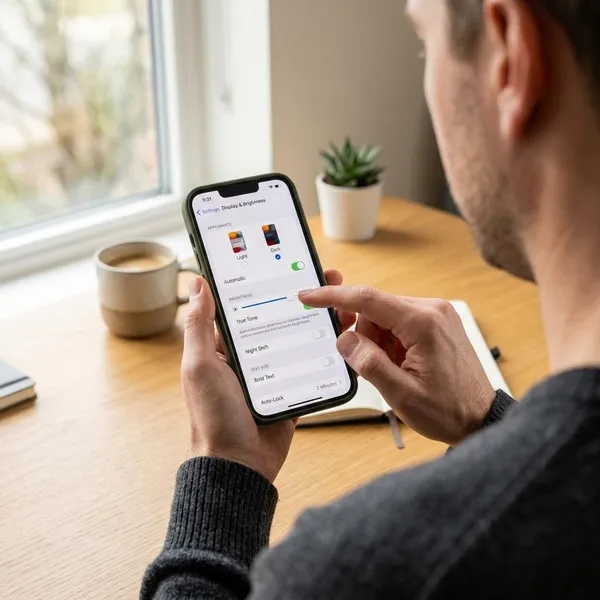
For a cleaner setup, avoid changing five things at once. Adjust one option, open Messages, Mail, Safari, or any app you use daily, and check whether the change actually helps.
Change screen brightness
Open Settings > Display & Brightness and move the brightness slider left or right. You can also open Control Center and use the brightness slider there, which is faster when you move from a bright street into a darker room.
Use small changes first. If the screen feels glaring indoors, reduce it a little; if you cannot read it outside, raise it only as much as needed.
Turn Dark Mode on or off
Go to Settings > Display & Brightness, then choose Light or Dark under Appearance. The change should apply immediately to iOS and to apps that follow the system appearance.
Schedule Dark Mode automatically
Open Settings > Display & Brightness, turn on Automatic, then tap Options. Choose Sunset to Sunrise if your routine follows normal daylight hours, or set a custom schedule if you work late, wake very early, or prefer Dark Mode before bedtime.
Turn True Tone on or off
Use the True Tone toggle in Settings > Display & Brightness. The effect is usually subtle, so test it in the rooms where you use your phone most instead of judging it only under one light.
If the screen looks too warm or inconsistent for photo editing, turn True Tone off temporarily. For everyday reading, many people prefer leaving it on because it softens the display under indoor lighting.
Change text size
Go to Settings > Display & Brightness > Text Size and move the slider. Slide right for larger text and left for smaller text.
If the standard slider is not enough, use Settings > Accessibility > Display & Text Size > Larger Text. After changing it, check a few everyday apps because support can vary from app to app.
Turn on Bold Text
Open Settings > Display & Brightness and turn on Bold Text. If your iPhone briefly refreshes the screen, that is normal.
- Good fit: text looks faint, but the size is mostly fine.
- Less ideal: the whole interface feels too small; Display Zoom may help more.
- Useful combo: Bold Text with a small Text Size increase.
Change Display Zoom
Go to Settings > Display & Brightness > Display Zoom, choose the available view for your iPhone, then apply it. Depending on the model and iOS version, the options may be shown as Default and Larger Text or similar display views.
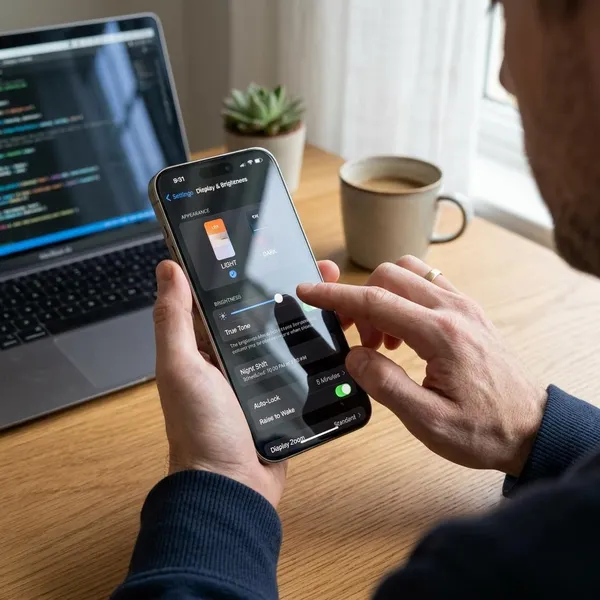
Spend a few minutes in your most-used apps after switching. If buttons are easier to tap but you dislike seeing fewer emails or messages at once, go back to Default and try Text Size or Bold Text instead.
Best iPhone display settings for easier reading
The best setup depends on what is making reading difficult. Small words, thin lettering, harsh brightness, and tiny buttons are different problems, so they need different fixes.
For most people, the easiest reading setup starts with text size and brightness. If that still is not enough, add Bold Text or Display Zoom rather than pushing one setting too far.
Larger Text for easier-to-read words
Use Larger Text when the words themselves are the problem. It helps most in apps like Messages, Mail, Notes, and many reading or browsing apps that support iOS text scaling.
A moderate increase is usually better for long-term use than the maximum setting. For occasional use, such as temporarily helping someone read a code or message, a larger setting may be fine even if the layout becomes less compact.
Bold Text for clearer lettering
Bold Text is the better choice when letters look too thin, especially against bright backgrounds. It improves contrast in a practical way without making every interface element much bigger.
Display Zoom for larger interface elements
Choose Display Zoom when the issue is not only reading but also tapping. If someone often misses small buttons, struggles with icons, or feels the iPhone layout is too dense, enlarging the whole interface can be more useful than only changing text size.
Do not use it just because it sounds like the strongest option. If you read long pages, manage many emails, or prefer seeing more content at once, try Text Size and Bold Text first.
Lower brightness for comfortable indoor viewing
Lower brightness is often the quickest fix for indoor discomfort. A bright screen can feel sharp in an office, kitchen, bedroom, or living room even when the text is large enough.
Check brightness again after coming inside from daylight. Many people leave it higher than needed, then wonder why reading feels tiring at night.
Dark Mode for low-light viewing
Dark Mode is worth using when bright white screens feel too intense in low light. It is especially useful for late messages, reading before sleep, or checking your phone without lighting up the whole room.
It is not automatically better for every situation. In bright daylight, Light Mode may still be clearer, so scheduling Dark Mode often gives the most balanced setup.
Conclusion
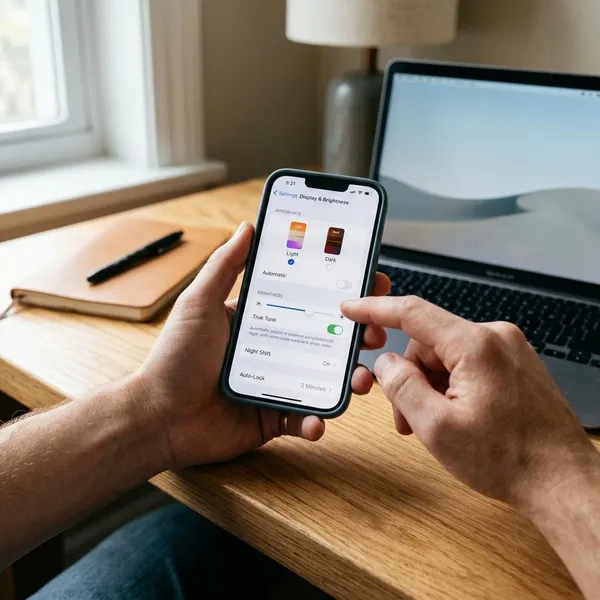
A comfortable iPhone screen usually comes from a few small choices, not one perfect setting. Start with brightness, then adjust text size or Bold Text for reading, and only use Display Zoom when the whole interface feels too small. If your phone feels fine in the day but harsh at night, scheduling Dark Mode is the cleaner fix than changing everything manually.
FAQS
How do I make the text bigger on my iPhone?
Use Settings > Display & Brightness > Text Size and move the slider right. If you need a bigger range, go to Settings > Accessibility > Display & Text Size > Larger Text and enable larger accessibility sizes.
Where is Auto-Brightness on iPhone?
Auto-Brightness is in Settings > Accessibility > Display & Text Size, near the bottom of that screen. It is easy to miss because it is not in the main Display & Brightness menu.
Does Dark Mode work in every app?
No. Many apps follow the iPhone system setting, but some use their own theme controls or do not fully support Dark Mode.
Why is my iPhone screen still too bright?
Check the brightness slider first, then review Auto-Brightness in Accessibility if the level keeps changing by itself. If the screen feels bright mainly because whites look harsh, Dark Mode or a lower brightness level may help more than changing text settings.