Which GPU Best Fits Your Gaming and Workload Needs?
A useful display card comparison starts with one question: what resolution are you actually going to play at? Match the GPU to your monitor first, then judge frame rate, VRAM, ray tracing, power use, and price. That order prevents the two most common mistakes: buying an expensive card your screen cannot really benefit from, or saving money on a GPU that will feel weak as soon as you raise settings.
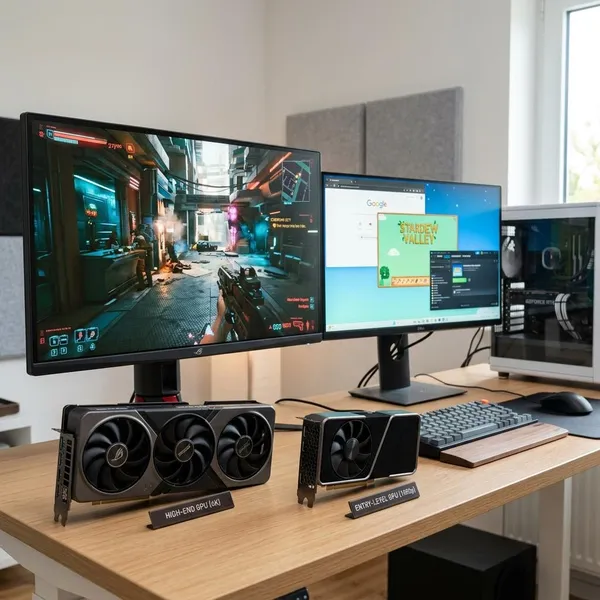
Which graphics card do you need for your resolution?
Your monitor resolution should decide the rough GPU class before you look at brands or model numbers. Higher resolution means more pixels per frame, so the card needs more rendering power, more memory headroom, and often better cooling.
A simple way to narrow the choice is to think in three buyer situations:
- 1080p: best when budget, high frame rates, or esports performance matters most.
- 1440p: the most balanced choice for sharp visuals without 4K-level GPU cost.
- 4K: worth it when image quality is the priority and the budget can support a stronger card.
1080p for lower-cost gaming
1080p is still the easiest resolution to buy for. Many budget and mid-range GPUs can handle it well, especially in games like Valorant, Counter-Strike, Fortnite, Rocket League, and similar esports titles where high FPS matters more than ultra settings.
If you are building a first gaming PC or upgrading an older system, 1080p is usually the safest value choice. You can often avoid extra spending on a bigger power supply, a larger case, or stronger cooling. For modern games, 8GB of VRAM is a sensible baseline, while more can help if you play newer AAA titles with high textures.
1440p for the best balance
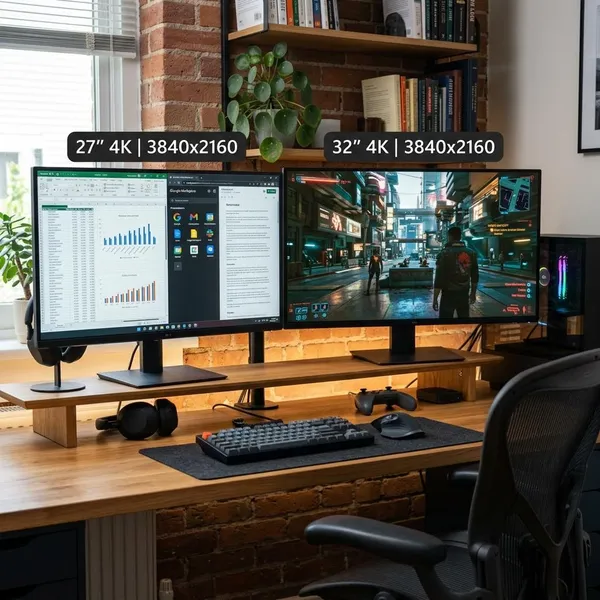
1440p is the sweet spot for many players because it looks noticeably sharper than 1080p, especially on a 27-inch monitor, but does not punish the GPU as hard as 4K. It is a good match if you want both good image quality and smooth frame rates.
4K for maximum image quality
4K is for players who care more about sharpness and visual detail than strict value. It looks excellent on larger displays, but it also demands a high-end GPU if you want high settings, stable frame rates, or ray tracing.
For a new 4K-focused purchase, 12GB of VRAM is usually the lower end to consider, while 16GB or more gives more breathing room in demanding games. Upscaling also becomes much more important here. If you are happy using quality upscaling modes, 4K becomes more realistic; if you insist on native 4K at ultra settings in every new game, expect the cost to rise quickly.
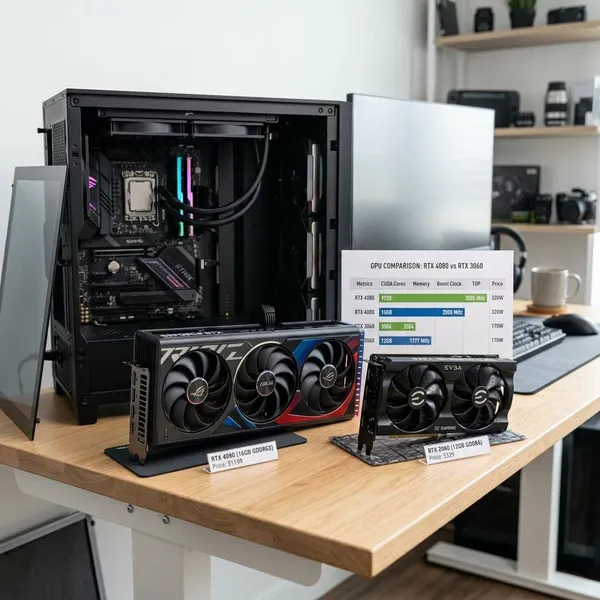
What matters when comparing graphics cards?
Real gaming experience matters more than a single spec. A GPU with more VRAM, a higher boost clock, or a newer name is not automatically the better buy. The useful comparison is how the card performs at your resolution, in the games you play, with the features you actually use.
Gaming performance
Average FPS tells you the basic speed of a card, but it does not tell the whole story. Check 1% lows or minimum frame-rate data when available, because those numbers show whether the game stays smooth during busy scenes.
Use benchmarks that match your real use. A competitive player targeting 144Hz at 1080p should not judge a GPU the same way as someone playing cinematic single-player games at 1440p or 4K. One cares more about consistent high FPS; the other may accept lower FPS for better visual settings.
VRAM
VRAM stores textures and other graphics data. More VRAM does not automatically make a slow GPU fast, but too little can cause stutter, texture pop-in, or forced setting reductions.
- 1080p: 8GB is a practical minimum for many current games.
- 1440p: 10GB to 12GB gives more comfort with high textures.
- 4K: 16GB is often the safer long-term target if the budget allows.
Ray tracing
Ray tracing can make lighting, shadows, and reflections look much better in supported games, but it can also cut performance sharply. A card being "ray tracing capable" is not enough; it needs to run those effects well at your resolution.
If you mainly play visually rich single-player games, ray tracing performance deserves real weight. If you mostly play competitive shooters with settings turned down for speed, it should be a lower priority than raw FPS and latency.
Upscaling and frame generation
Upscaling renders a game at a lower internal resolution and reconstructs a sharper image. Frame generation adds generated frames to improve perceived smoothness. These features can make a mid-range card feel more useful at 1440p or help a 4K setup stay playable.
Power consumption
Power use affects more than the electricity bill. A higher-power GPU may run hotter, make more fan noise, need a stronger PSU, or expose weak airflow in a small case.
This matters if your PC sits in a warm room, a compact case, or a quiet workspace. In that situation, a slightly slower but more efficient card can be the better everyday choice if it still reaches your target frame rate.
Price-to-performance
Value changes with current pricing, not old launch prices. A card that was poor value six months ago can become a smart buy after discounts, while a popular model can become overpriced when stock is tight.
When two GPUs are close, judge the full package:
- Meets your FPS target: do not pay a lot more for frames you will not notice.
- Has enough VRAM: avoid cards that already feel tight for your resolution.
- Fits your system: include PSU, heat, size, and connector needs.
- Supports useful features: upscaling, encoders, and software tools matter only if you will use them.
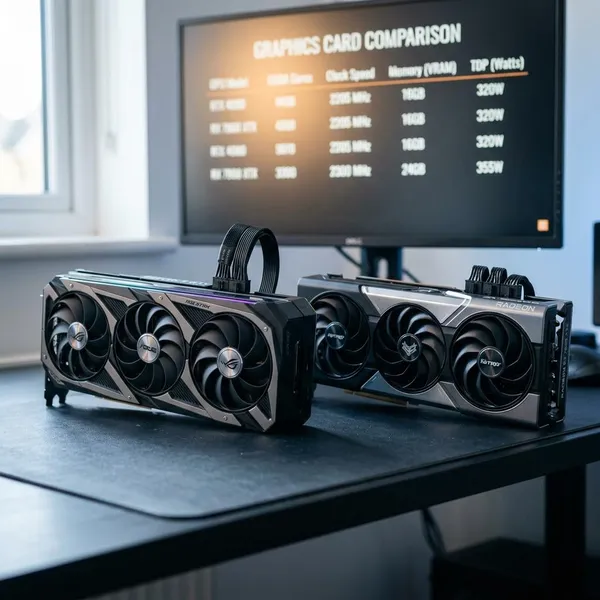
How to compare two graphics cards
Compare two GPUs under the same conditions or the result can be misleading. Use the same resolution, similar quality settings, recent drivers, and preferably several games instead of one favorable benchmark.
Compare performance at the same resolution
Only compare benchmark results that match the resolution you plan to use. A card that looks excellent at 1080p may lose ground at 1440p, and a small gap at 1440p can become much larger at 4K.
Use more than one game if possible. Some engines favor one architecture or brand, so a single chart can give the wrong impression. A mix of esports, open-world, and demanding single-player titles gives a more realistic picture.
Check VRAM and memory limits
When two cards are close in speed, VRAM can be the tiebreaker. The card with more usable memory may age better if you keep GPUs for a long time, use high-resolution textures, or play large open-world games.
The warning sign is not always a low average FPS number. Memory limits often show up as stutter, delayed texture loading, or sudden drops when entering dense areas. If reviews mention these symptoms at your target resolution, take them seriously.
Compare ray tracing performance
Check ray tracing results separately from standard raster performance. Some GPUs are strong without ray tracing but lose a lot of speed once lighting and reflection effects are enabled.
For a fair comparison, look at ray tracing benchmarks with realistic settings. If you would normally use upscaling with ray tracing, compare results that include it. If you would turn ray tracing off in most games, do not let that feature dominate your decision.
Check supported gaming features
Features can change the ownership experience even when raw FPS is similar. Upscaling, frame generation, latency tools, recording software, driver stability, and video encoders may all matter depending on how you use the PC.
- Streaming or recording: check encoder quality and software tools.
- New AAA games: upscaling support can extend the life of the card.
- Competitive play: latency features and stable frame pacing matter more than visual extras.
Compare power requirements
Look at the GPU's board power, the manufacturer's PSU recommendation, and the connectors required by the exact model you want to buy. Also consider your CPU, storage, fans, and any overclocking, because the whole system draws power under load.
If one card forces a PSU upgrade and the other does not, include that cost immediately. The cheaper GPU on the product page may not be cheaper once the full upgrade is counted.
Compare current prices
Check prices right before buying. GPU value moves quickly, and older reviews may not reflect discounts, new competing cards, bundle deals, or used-market changes.
- Pick your resolution. Ignore results that do not match your monitor.
- Set your FPS target. Decide whether you need 60, 120, 144, or more.
- Compare recent benchmarks. Use average FPS, 1% lows, VRAM behavior, and power use.
- Add hidden costs. Include PSU, cables, case fit, and cooling if needed.
How to choose the right graphics card
The best GPU for you is the one that reaches your target experience without creating problems elsewhere in the PC. Start with the monitor and performance goal, then check the budget, PSU, case, and current benchmark data.
This order keeps the decision practical. It stops you from buying based on brand loyalty, a single impressive spec, or a model name that sounds stronger than it really is for your setup.
Set your target resolution
Choose for the screen you use most often. If you plan to stay on 1080p for the next few years, a high-end 4K card is usually wasted unless you chase very high refresh rates. If you are moving to 1440p soon, buy for that future monitor rather than your current 1080p display.
Decide your performance goal
Be specific. "Good performance" is too vague. A better target is 60 FPS at high settings in single-player games, 120 to 144 FPS in competitive games, or smooth 4K with upscaling.
A casual weekend player may be happy with stable 60 FPS and better value. Someone playing ranked shooters every night may care more about high refresh rates, low latency, and consistent 1% lows than maximum texture settings.
Set your budget
Set a full upgrade budget, not just a GPU budget. A more demanding card may require a stronger PSU, better airflow, or a larger case. Those costs can turn a "good deal" into a poor one.
It is fine to spend a little more for useful headroom, such as extra VRAM or better efficiency, if you expect to keep the card for years. Just avoid paying extra for features you know you will not use.
Check your power supply
Before ordering, check three things: wattage, connector type, and PSU quality. A low-quality or old power supply can be a weak point even if the number on the label looks acceptable.
If your PSU is already near its limit, choose a more efficient GPU or budget for a replacement. Random crashes under gaming load are often more frustrating than spending a little time checking compatibility first.
Confirm case compatibility
Measure the space in your case and compare it with the exact GPU model, not just the GPU chip name. Different versions of the same card can have very different cooler sizes.
- Check length: front fans or radiators can reduce clearance.
- Check thickness: some cards block extra slots.
- Check cable room: power connectors need space to bend safely.
- Check airflow: a card that barely fits may still run hot.
Compare benchmarks before buying
Do the final benchmark check when you are ready to buy, not weeks earlier. Driver updates, game patches, and price changes can shift the best option.
Use recent reviews from sources that test the same resolution and similar settings to your target. By this point, the decision should be fairly narrow: the right card is the one that hits your performance goal, fits your PC, and still makes sense at today's price.
Conclusion
A good GPU choice is less about chasing the biggest model number and more about matching the card to your real setup. Start with resolution, set a clear frame-rate goal, then use benchmarks, VRAM needs, power requirements, case fit, and current price to remove the wrong options. If a card reaches the experience you want without forcing extra upgrades, it is usually the smarter buy than a faster card that stretches the whole system.
FAQS
Is there a website to compare graphics cards?
Yes. Use trusted hardware review sites and benchmark databases, but prefer results that test multiple GPUs in the same games, at the same resolution, with the same settings. Synthetic scores are useful for a quick clue, not for a final buying decision.
How much VRAM do I need for gaming?
For many current games, 8GB is a practical 1080p minimum, 10GB to 12GB is more comfortable for 1440p, and 16GB is a safer target for 4K or longer-term use. Texture settings, mods, and newer AAA games can push those needs higher.
Is Nvidia or AMD better for gaming?
Neither is always better. Nvidia is often stronger for ray tracing and some feature ecosystems, while AMD can offer strong traditional performance and value in certain price ranges. Compare the specific cards at your resolution instead of choosing only by brand.
Is RTX better than GTX?
For modern gaming, usually yes. RTX cards support newer features such as ray tracing and advanced upscaling, while GTX cards are mainly worth considering for older games, lighter 1080p play, or very tight budgets.