Why Are There Black Spots on Your Laptop Screen?
Black spots on a laptop display are usually either surface dirt, failed pixels, pressure damage, liquid inside the panel, or a cracked screen layer. Start with the quick checks before assuming the worst: clean the screen, test solid colors, take a screenshot, and compare the laptop with an external monitor.
How to Identify Laptop Display Black Spots
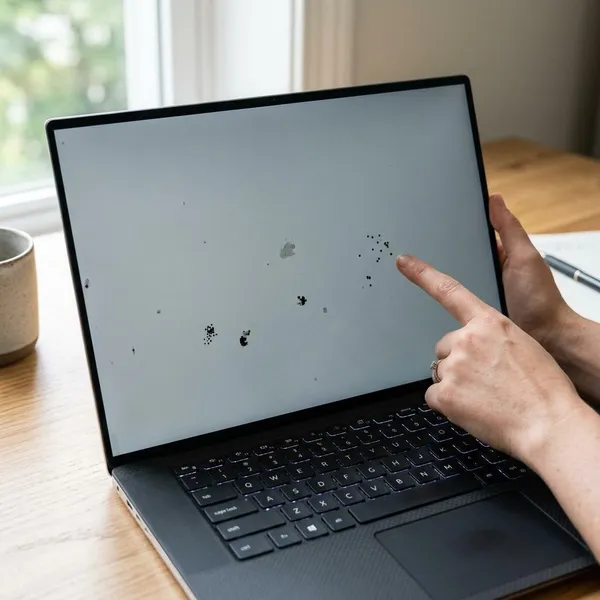
The first goal is not to "fix" the spot immediately. It is to work out whether the mark is on the surface, in the image being shown, or inside the display panel. A tiny black dot, a cloudy bruise, and an ink-like blotch all point to different problems.
Clean the surface and check again
Turn the laptop off, unplug it, and wipe the screen gently with a clean microfiber cloth. If the mark smears, fades, or changes shape, it was probably dust, oil, dried liquid, or debris on the surface. If it stays locked in exactly the same place, especially under the glass or plastic layer, treat it as a panel issue rather than a cleaning problem.
View solid black, white, red, green, and blue screens
Open full-screen solid colors and look at the same spot on each one. A dead pixel usually appears as a very small, sharp black point. Pressure damage is more likely to look like a soft shadow or cloudy patch, while liquid crystal damage can look uneven, blotchy, or ink-like.
- White screen: best for spotting dark dots and stains.
- Red, green, and blue screens: useful for separating stuck pixels from dead pixels.
- Black screen: helps reveal bright stuck pixels, but dark marks may be harder to judge.
Take a screenshot and open it on another device
A screenshot is a quick way to avoid chasing the wrong problem. Take a screenshot while the spot is visible, then open that image on a phone, tablet, or another computer. If the mark appears in the screenshot on the second device, the issue is probably in the content, app, graphics output, or image file. If the screenshot looks clean elsewhere, the laptop display itself is the likely source.
Connect the laptop to an external monitor
Connect the laptop to a monitor or TV using HDMI, DisplayPort, or USB-C, depending on your model. If the external screen looks normal while the built-in screen still has the mark, the problem is almost certainly limited to the laptop panel.
If both screens show the same mark in the same part of the image, look at software, drivers, or the graphics hardware before paying for a display replacement.
Check whether the spot grows or changes shape
A stable pin-sized dot is less urgent than a spreading blotch. Take a clear photo on a white background, then compare it again after a few days of normal use.
- Small and unchanged: often a dead pixel or minor fixed defect.
- Soft bruise after carrying the laptop in a tight bag: likely pressure damage.
- Irregular stain that expands: more concerning and usually not worth delaying.
Which Black Spots Cannot Be Repaired
Once the mark is inside the panel, cleaning products, display settings, and most "screen repair" tricks will not solve it. The practical question becomes whether you can live with it, use an external monitor, or replace the screen.
Dead pixels cannot be restored with software
A dead pixel does not light up, so it stays black on white, red, green, and blue test screens. Pixel-cycling tools may sometimes help a stuck pixel that is frozen on a color, but they are not a reliable fix for a truly black dead pixel. Do not press hard on the screen trying to "wake it up"; that can turn one small defect into pressure damage.
Pressure bruises usually need panel replacement
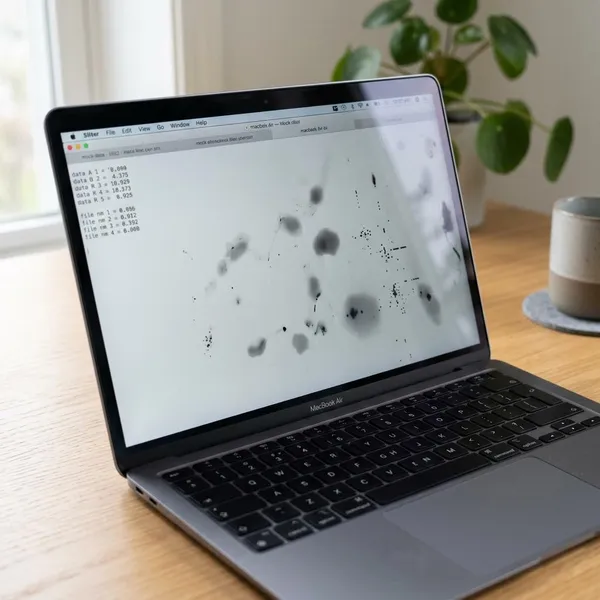
Pressure bruises happen when the display layers are squeezed or bent, often from a laptop packed tightly in a bag, closed on an object, or carried under heavy books. The mark usually has soft edges rather than a precise dot.
If it sits near the corner and does not grow, you may choose to ignore it for a while. If it is in the middle of the screen or makes text hard to read, replacement is usually the only clean fix.
Internal liquid damage cannot be cleaned away
Liquid inside the panel can leave dark patches, cloudy areas, or uneven stains that look as if they sit below the surface. Wiping harder will not reach it and may make the panel worse. If a spill happened recently, stop using the laptop if you notice other symptoms such as flickering, keyboard issues, or sudden shutdowns, because the problem may not be limited to the display.
Cracks and spreading blotches need a new screen
Cracks, branching lines, and spreading black areas are signs of physical panel failure. You might still get an image for a while, but the damage is not something software can reverse.
- Replace sooner if the blotch is expanding or covering text.
- Be cautious if flickering, colored lines, or dead sections appear with the spot.
- Avoid pressure on the lid or bezel, because a cracked panel can worsen suddenly.
What to Do Before Screen Replacement
If the tests point to panel damage, take a few practical steps before booking a repair. This protects your files, helps with warranty conversations, and prevents you from spending more than the laptop is worth.
Back up important files
Back up your documents, photos, work files, and anything else you would not want to lose. A screen repair normally should not erase data, but the laptop may still be opened, tested, transported, or powered on and off several times. If the built-in display is hard to use, plug in an external monitor and back up from there.
Photograph the screen damage
Take one full-screen photo and one close-up, ideally on a white background and one solid color screen. Photos help a repair shop quote more accurately, and they give you a record if the damage spreads before the appointment.
Check the warranty and damage coverage
Look up the warranty using the laptop's serial number before paying out of pocket. Standard coverage may handle some panel defects, but accidental pressure, drops, cracks, and liquid damage are often excluded unless you bought extra protection. Some manufacturers also have specific pixel policies, so one dead pixel may not always qualify for a free replacement.
Request a model-specific repair quote
Ask for a quote based on the exact laptop model, not just the screen size. Resolution, touch support, refresh rate, panel type, brightness, and whether the screen is LCD or OLED can all affect price and compatibility.
- Ask what panel will be used: original, compatible, or refurbished.
- Separate parts and labor: this makes quotes easier to compare.
- Check the repair warranty: even a short parts-and-labor guarantee is useful.
Compare repair cost with the laptop's value
A repair makes more sense on a newer laptop that still runs well than on an older one with a weak battery, heat problems, or poor performance. As a rough decision method, compare the full repair price with the current used value of the same model in working condition, not with what you originally paid.
If you mostly use the laptop at a desk, an external monitor can be a sensible temporary fix. If you travel with it, study with it, or work from different places, a damaged built-in display becomes a bigger daily problem and replacement may be worth it sooner.
Conclusion
A black spot is worth testing before you spend money, because dirt and image issues are easy to rule out, while dead pixels, pressure bruises, liquid damage, and spreading cracks usually point to the panel itself. If the mark is small and stable, living with it or using an external monitor may be enough; if it grows, sits in your main viewing area, or comes with flickering or lines, get a model-specific repair quote and decide based on the laptop's real value.
FAQS
Can you keep using a laptop with black screen spots?
Yes, if the spot is small, stable, and not blocking anything important. Stop treating it as harmless if it grows, spreads into a blotch, or appears with lines, flickering, or sudden display changes.
Can a screen protector hide black spots?
No, not if the spot is inside the panel. A protector may hide scratches or reduce glare, but dead pixels, pressure marks, and LCD blotches will still show through.
Can you use an external monitor instead of replacing the screen?
Yes, especially if the laptop stays on a desk most of the time. It is less convenient for travel, but it can be a practical way to delay repair on an otherwise working laptop.