How Do Monitor Mounts Improve Your Desk Setup?
Computer display mounts are worth considering if your screen sits too low, takes up too much desk space, or needs to line up with another monitor. Start with three checks before you buy: whether your monitor has VESA holes, whether the mount supports the screen's weight and size, and whether your desk can safely hold the base.
What Do Computer Display Mounts Do?
A monitor mount replaces the original stand and gives you more control over where the screen sits. The biggest benefit is not just a cleaner desk; it is being able to place the screen where your posture, chair height, desk depth, and daily tasks actually need it.
Before thinking about style, check the back of your monitor. Most mounts use a VESA pattern, commonly 75x75 mm or 100x100 mm, but some monitors need an adapter or cannot be mounted cleanly at all.
Hold screens without the original stand
A mount lets you remove the bulky factory stand and support the screen from an arm, pole, wall plate, or multi-monitor frame. This is especially useful on small desks where the original stand takes up the exact space you want for a keyboard, notebook, speakers, or laptop dock.
Adjust screen height and viewing angle
Better height control is often the main comfort upgrade. For long work sessions, the screen should usually sit around eye level, but the right position depends on your chair, desk height, and how far back you sit.
Free up desk space
Clamp, grommet, and wall-mounted options usually free the most surface area because the screen no longer rests in the middle of the desk. On a narrow desk, even removing one wide monitor foot can make space for writing, charging devices, or using a larger mouse pad.
Align multiple screens
Mounts make mixed-monitor setups easier to live with. If two screens have different factory stands, lining up the top edges can be frustrating; adjustable arms let you match height, distance, and angle instead of stacking books under one monitor.
Which Monitor Mount Type Fits Your Setup?
Choose the mount type by screen count first, then screen size and movement needs. A basic one-monitor desk does not need the same hardware as a dual-screen work area or a heavy ultrawide gaming setup.
Single arms for one monitor
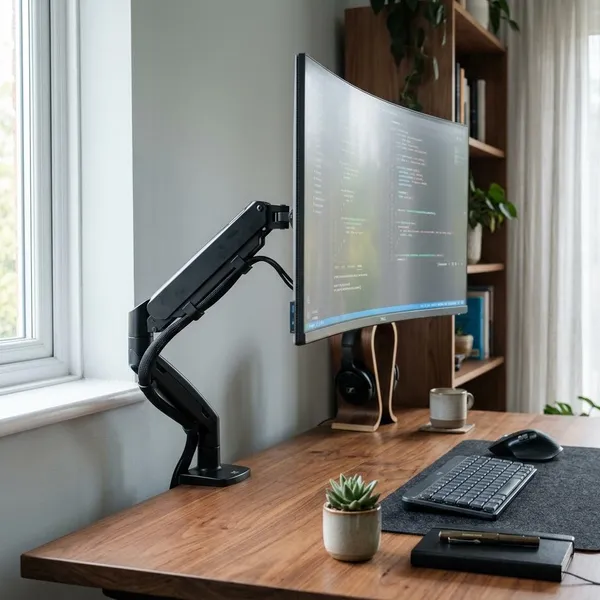
A single arm is the simplest choice for one monitor. It suits home office work, studying, browsing, and casual gaming, as long as the monitor's VESA pattern, weight, and size match the arm's limits.
For a first-time setup, this is usually the safest place to start. You get the space-saving and height benefits without paying for extra arms you may never use.
Dual arms for two monitors
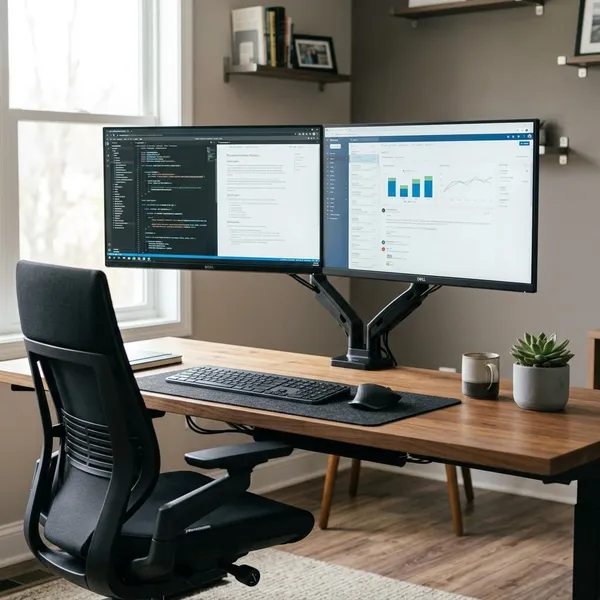
Dual arms make sense when both screens are used every day, such as one screen for work and one for email, chat, documents, or reference material. They also reduce the messy look of two different factory stands sitting side by side.
If your monitors are different sizes, independent arms are usually easier to adjust than a shared bar. A shared-post design can still work well when both screens are similar and you want a tidy, symmetrical layout.
Heavy-duty arms for ultrawide monitors
An ultrawide monitor needs more caution because width creates leverage. Even if the listed weight looks acceptable, a large curved screen may sag, tilt forward, or wobble on a standard arm.
Multi-monitor stands for three or more screens
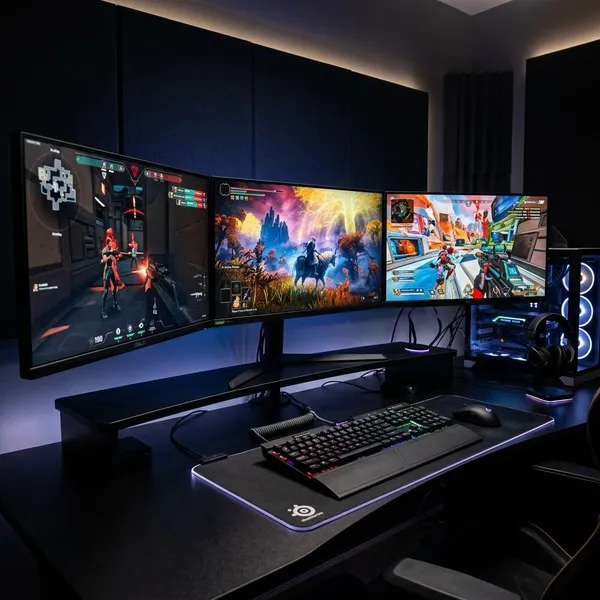
Multi-monitor stands are useful when you want three or more screens held in a fixed, organized layout. They suit trading-style desks, streaming setups, monitoring dashboards, or workstations where screen positions rarely change.
The tradeoff is flexibility. If you like changing angles often or use screens of very different sizes, separate arms may feel easier to fine-tune.
Wall mounts for a clear desk
A wall mount keeps the desktop completely clear and works well when the desk is small, shallow, or not strong enough for a clamp. It is best for a setup that stays in one place.
The wall must be suitable for the load. Drywall alone may not be enough unless the correct anchors or studs are used, so treat wall mounting as a more permanent installation rather than a quick desk accessory.
Which Mounting Base Should You Choose?
The base decides whether the mount will actually work with your furniture. A strong arm on the wrong desk can still wobble, damage the surface, or fail to fit because of drawers, rear lips, cable trays, or a wall directly behind the desk.
C-clamps for easy desk-edge mounting
C-clamps are the most convenient option for many desks because they grip the rear edge without drilling. They work best on sturdy wood or metal desks with a flat, accessible edge and enough underside clearance.
Grommet mounts for stronger desk support
A grommet mount uses a hole through the desk, either an existing cable hole or one drilled for the mount. It can feel more secure than a clamp because the force is held through the desktop rather than only at the edge.
This is a strong choice for heavier monitors or dual arms if the hole is in the right place. If drilling would ruin the desk or put the screen too far forward, a clamp or freestanding option may be more sensible.
Freestanding bases for desks that cannot be drilled
Freestanding bases sit on the desk like a traditional stand but may offer better height control or multi-screen alignment. They are useful for rental furniture, antique desks, glass desks, or surfaces where clamping feels risky.
The downside is obvious: you keep a base on the desktop. For temporary setups or desks you do not want to mark, that tradeoff can be worth it.
Wall mounts for maximum desk space
Wall mounts save the most desk space because nothing attaches to the desktop. They work well in tight rooms, minimalist setups, or work areas where the desk is more like a shelf than a full workstation.
Use this option only if the wall, hardware, viewing distance, and cable path all make sense. A wall-mounted monitor in the wrong spot is harder to correct than a clamp arm you can slide along the desk.
Which Mount Features Matter Most?
After compatibility, focus on the features you will notice every day: movement, reach, stability, and cable control. Published weight limits matter, but they do not tell the whole story. A mount can technically hold a monitor and still feel shaky if the joints are weak.
Gas springs make movement easier
Gas spring arms are best when you move the screen often. They make it easier to pull the monitor closer for detailed work, push it back when you need desk space, or adjust height when switching between sitting positions.
Pole mounts offer simple height control
Pole mounts are simpler and usually more fixed. You set the monitor height on the vertical post, tighten it, and leave it there.
They are a good match for a family computer, a secondary screen, or an office desk where the same person uses the same position every day. They are less satisfying if you constantly pull the monitor forward and back.
Arm reach controls screen placement
Arm reach determines whether the screen can sit where you need it, not just whether it can be attached. Deep desks, corner desks, and wall-facing desks all need careful reach checks.
- Deep desk: make sure the arm can bring the screen close enough.
- Desk against a wall: check whether the arm needs space behind it when folded.
- Corner setup: confirm the arm can move sideways without hitting shelves or walls.
Tilt and swivel improve viewing angles
Tilt helps with vertical angle and glare; swivel helps you turn the screen toward your chair or another person. These features matter more in rooms where sunlight changes during the day or where the screen is shared during calls, studying, or casual viewing.
If you want portrait mode, also check rotation support. Larger screens may rotate in theory but feel awkward or unstable in practice.
Cable channels keep the desk tidy
Cable channels are not only cosmetic. They guide power and display cables along the arm so wires do not snag, pull against ports, or hang behind the desk in a messy bundle.
Strong joints reduce screen wobble
Strong joints are what keep the monitor from sagging after you position it. Wobble is most noticeable with heavier screens, long arm extension, lightweight desks, or typing on a desk that already shakes a little.
Do not judge this from product photos alone. Look for comments about tilt drift, sagging, and stability after adjustment, especially if you are mounting a large or curved monitor.
Conclusion
The best choice is the mount that fits your monitor, your desk, and the way you actually use the screen. Check VESA fit, monitor weight, desk strength, and base style first; then decide how much movement, reach, and stability you need. For a simple one-screen desk, a single clamp arm is often enough, while heavy ultrawide, glass-desk, shared-desk, and wall-mounted setups deserve a more cautious choice.
FAQS
Can you mount a monitor without VESA holes?
Sometimes, but only with a compatible adapter. Check whether the adapter is made for your monitor model or screen shape, and avoid forcing a clamp-style adapter onto a thin or unusual monitor back.
Can a monitor arm damage a desk?
Yes, especially on thin, hollow, soft, or fragile desktops. Use the included pads if provided, avoid overtightening clamps, and do not mount a heavy screen on a surface that already flexes under pressure.
Can one mount hold a monitor and laptop?
Yes, if the system is designed for a monitor plus laptop tray. Count the laptop tray and laptop weight as part of the load, and make sure the tray position will not block your keyboard or push the monitor too far away.